Navigation Bar Integration
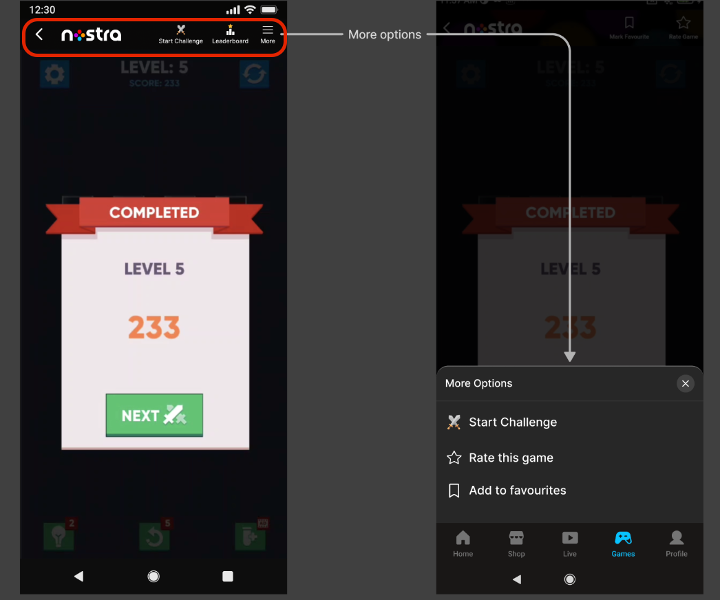
The navigation bar in Nostra provides players easy and consistent access to the Nostra features, such as the Start Challenge, Add to favorites, Leaderboard, and others. The navigation bar stays visible across all the game screens, and players can navigate to different pages at any stage of the game.
For the portrait mode, the navigation bar stays on the top of the game screen.
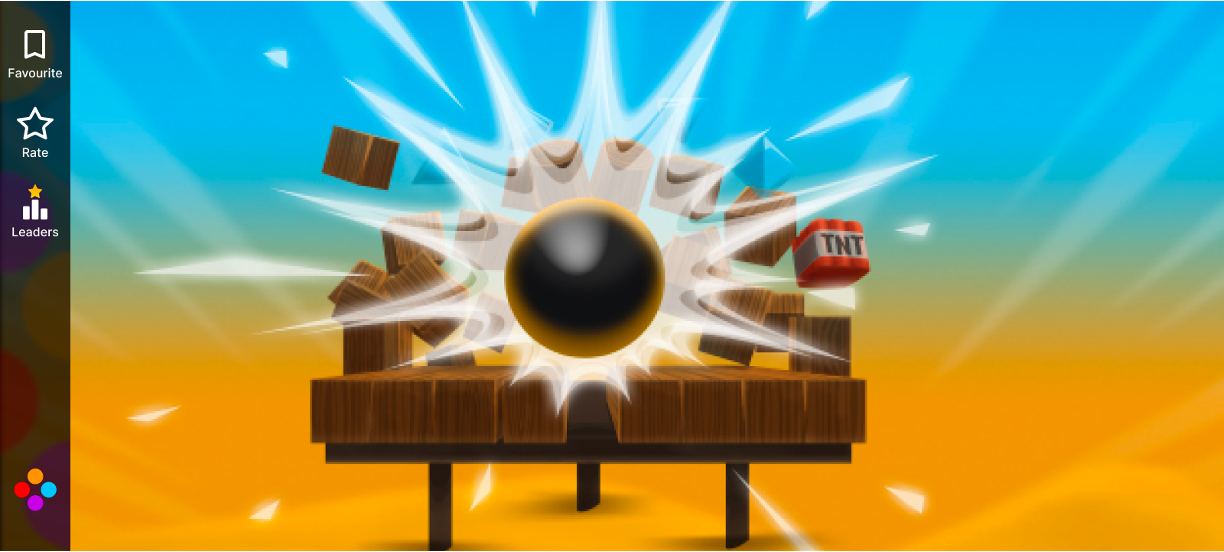
For the landscape mode, the navigation bar stays on the left of the game screen.
Integration steps
Integrate the Nostra navigation bar into your game using the following steps:
-
Reserve a 50px margin (default margin) in the game canvas for the navigation bar. This prevents the content from being obscured by the navigation bar.
-
Add a global function
setWindowMargin()to enable dynamic update of the top margin if required:
function setWindowMargin(margin) {
    // Get game canvas element. Canvas ID may vary.
    const canvas = document.getElementById(<YOUR-GAME-CANVAS-ID>);
    const isLandscape = window.innerWidth > window.innerHeight;
    if (isLandscape) {
        canvas.style.left = `${margin}px`;
        canvas.style.position = `relative`;
        canvas.style.marginLeft = `0`;
    } else {
        canvas.style.top = `${margin}px`;
        canvas.style.position = `relative`;
        canvas.style.marginTop = `0`;
    }
}
For example, add the following snippet to adjust the position of the game canvas downwards by 60 pixels:
    // Increase top margin to 60px
    setWindowMargin(60);
Integrating Navigation bar in Construct3 gaming engine
If your game is built on the Construct3 gaming, you can directly add the navigation bar from the Construct3 console using the following steps:
-
Log in to your game on Construct3 editor.
-
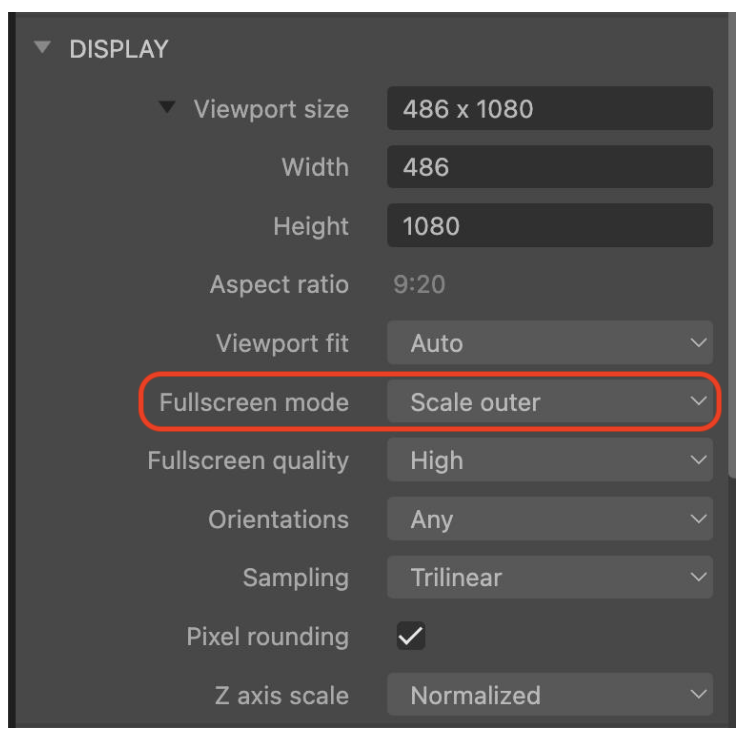
In Layout Properties, expand Display section.
-
In Fullscreen mode drop-down, select Scale outer.
-
For adding a top-margin to provide buffer space for any game element:
-
Create a Top margin Sprite in black and position it at the top of the game layout.
-
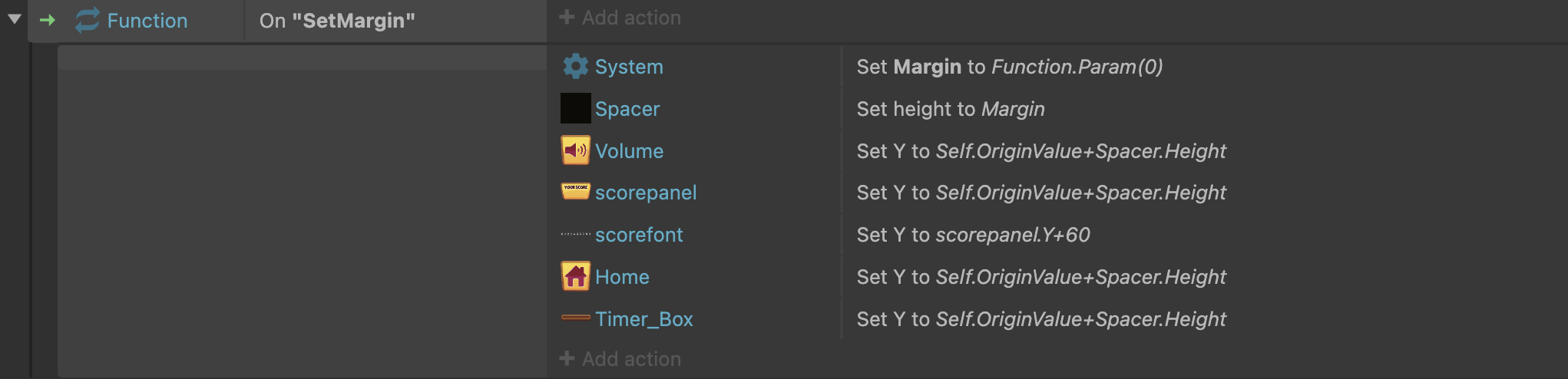
Create a C3 function with a parameter that dynamically adjusts the height of the black Top margin Sprite (created in the previous step). Add the logic to dynamically reposition other relevant objects that occupy the top section of the game layout, including volume buttons and score panels, for a consistent and clean layout.
 3. Update the index.html file by adding the setWindowMargin() function. The function calls C3 function mentioned as follows:
function setWindowMargin(margin) {
  c3_callFunction("SetMargin",[margin]);
}
If your game is built on the Cocos gaming, you can follow the standard Integration steps along with the following steps:
-
Open the main.js file within your game code base.
-
Comment the following piece of code in your game code:
cc.view.enableAutoFullScreen([ cc.sys.BROWSER_TYPE_BAIDU, cc.sys.BROWSER_TYPE_BAIDU_APP, cc.sys.BROWSER_TYPE_WECHAT, cc.sys.BROWSER_TYPE_MOBILE_QQ, cc.sys.BROWSER_TYPE_MIUI, cc.sys.BROWSER_TYPE_HUAWEI, cc.sys.BROWSER_TYPE_UC ].indexOf(cc.sys.browserType) < 0); - Define the global function setWindowMargin() as explained in the Integration steps.