Overview
After integrating your game into the Nostra, check if the integration works correctly and if ads are rendering in the ad slots.
Set up for testing
Build the testing set-up as follows:
Open Screenshot 2023-03-03 at 10.30.36 AM.png
-
Download and install the glance_env_testing debug app.
-
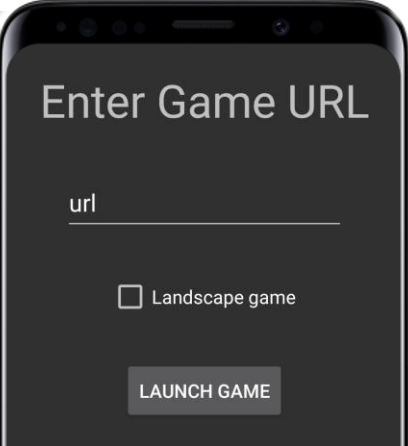
Open the app. You reach on Enter Game URL page.
-
Host your app on a CDN and extract the game URL.
-
Copy the URL and paste it into the URL field on the Enter Game URL page.
-
Add the following macros to the URL.
?userid=$USER_ID&apikey=$API_KEY&impId=$IMP_ID&glanceId=$GLANCE_ID&gpid=$GPID&LPMREC=true -
Enable the test mode in the game. Refer to Sample Integration and MLib testing topic for more info.
-
For landscape games, check Landscape Game.
-
Click Launch Game.
Testing checklist
After clicking Launch Game, the game starts loading. Check if all the screens and ad slots are loading and working. For ad slot testing, read Sample Integration and MLib testing.
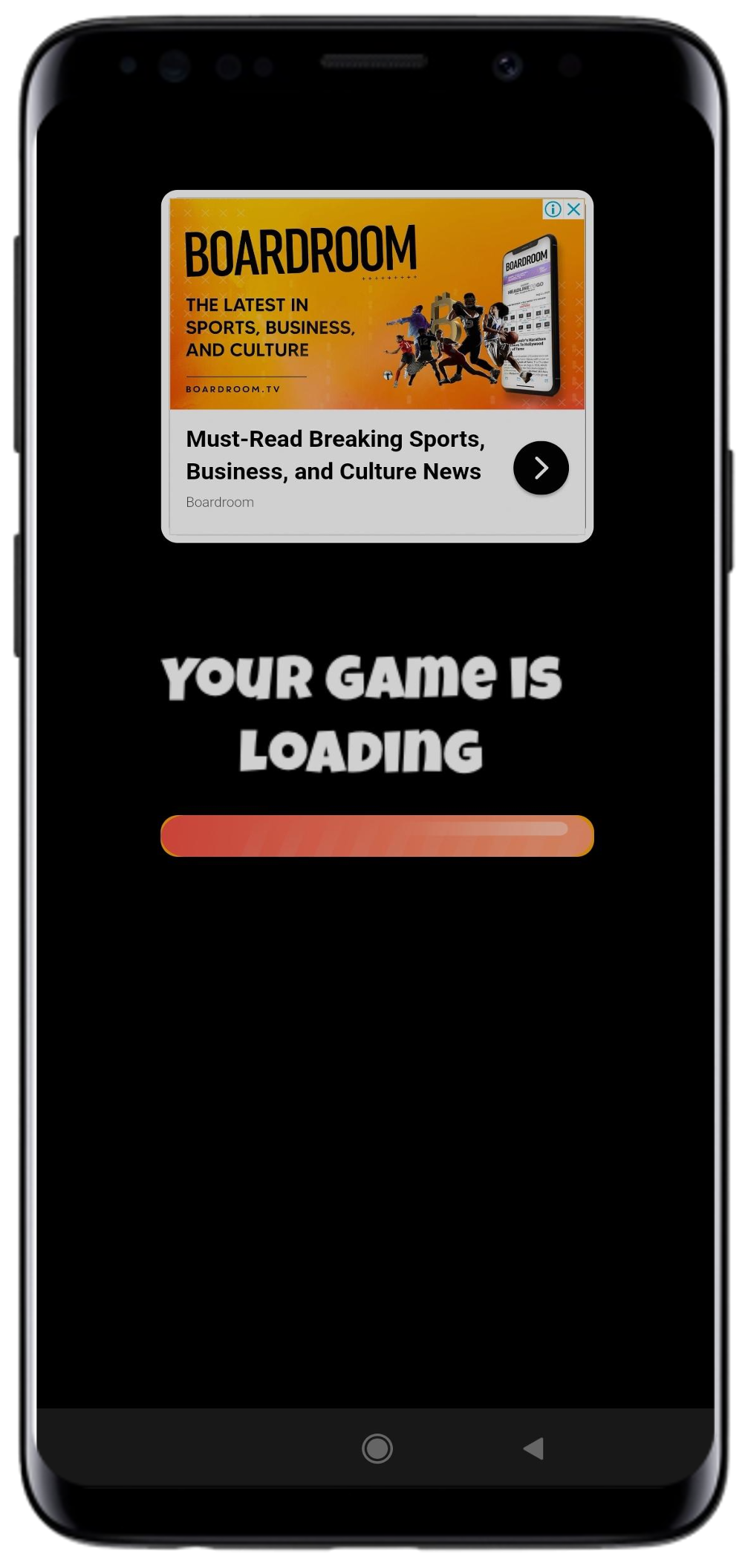
Loading page
Check the following on the Loading page:
-
The Loading page is on the screen until the game loads completely.
-
The progress bar is moving from 0% to 100%.
-
The ad request is enabled in the Network tab in the Chrome debugger. Filter by clicking ads? to see the ad requests.
Reward page
Check the following on the Reward page:
-
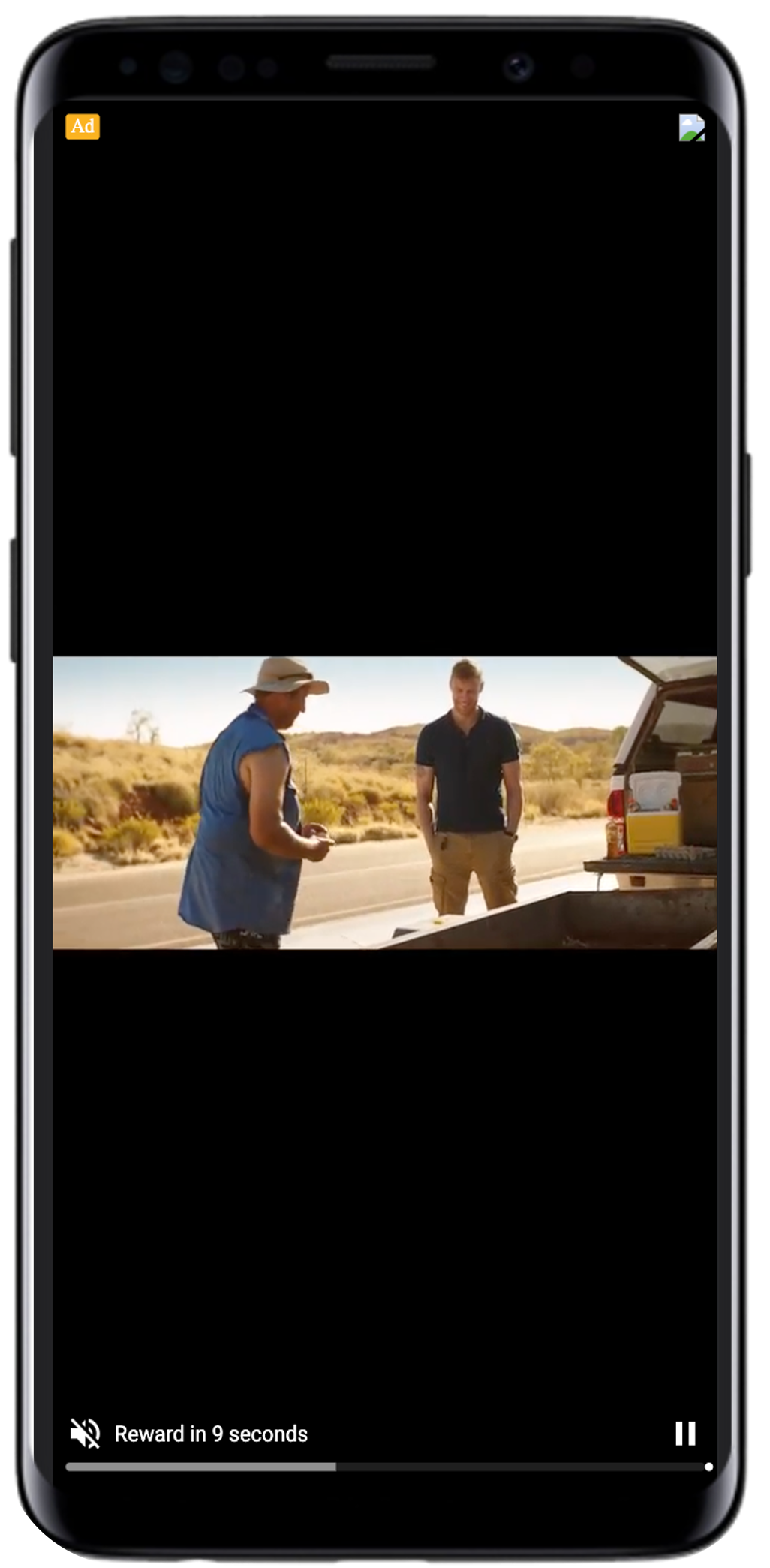
A reward ad appears after a player clicks replay, revive, Power-up, skip level, or similar buttons.
-
Test the following edge cases before sending the final game code to your Glance Account manager:
| Edge Case | Revive | Replay | Power-up | Skip level |
|---|---|---|---|---|
| The player skips or closes the ad before minimum watch time. | Do not grant the reward to the player. | Do not grant the reward to the player. | Do not grant the reward to the player. | Do not grant the reward to the player. |
| The player watches the full-video. | Grant the reward to the player. | Grant the reward to the player. | Grant the reward to the player. | Grant the reward to the player. |
| The ad slots do not fill with ads. | Grant the reward to the player. | Grant the reward to the player. | Grant the reward to the player. | Grant the reward to the player. |
-
The ad loads and caches before the player opts to view the ad. After the player views the ad, the game loads and caches the next ad.
-
The ad request fires in the network tab of the Chrome debugger.
-
The player sees an ad whenever there is an ad response.
-
A game layer does not hide the ad or a part of the ad.
-
The game collapses the slot if it interrupts game scenes.
-
The entire ad is clearly visible.
-
The landing page of an ad opens without unlocking the phone.
-
The game has back and close buttons.
-
The game does not immediately start after an ad.
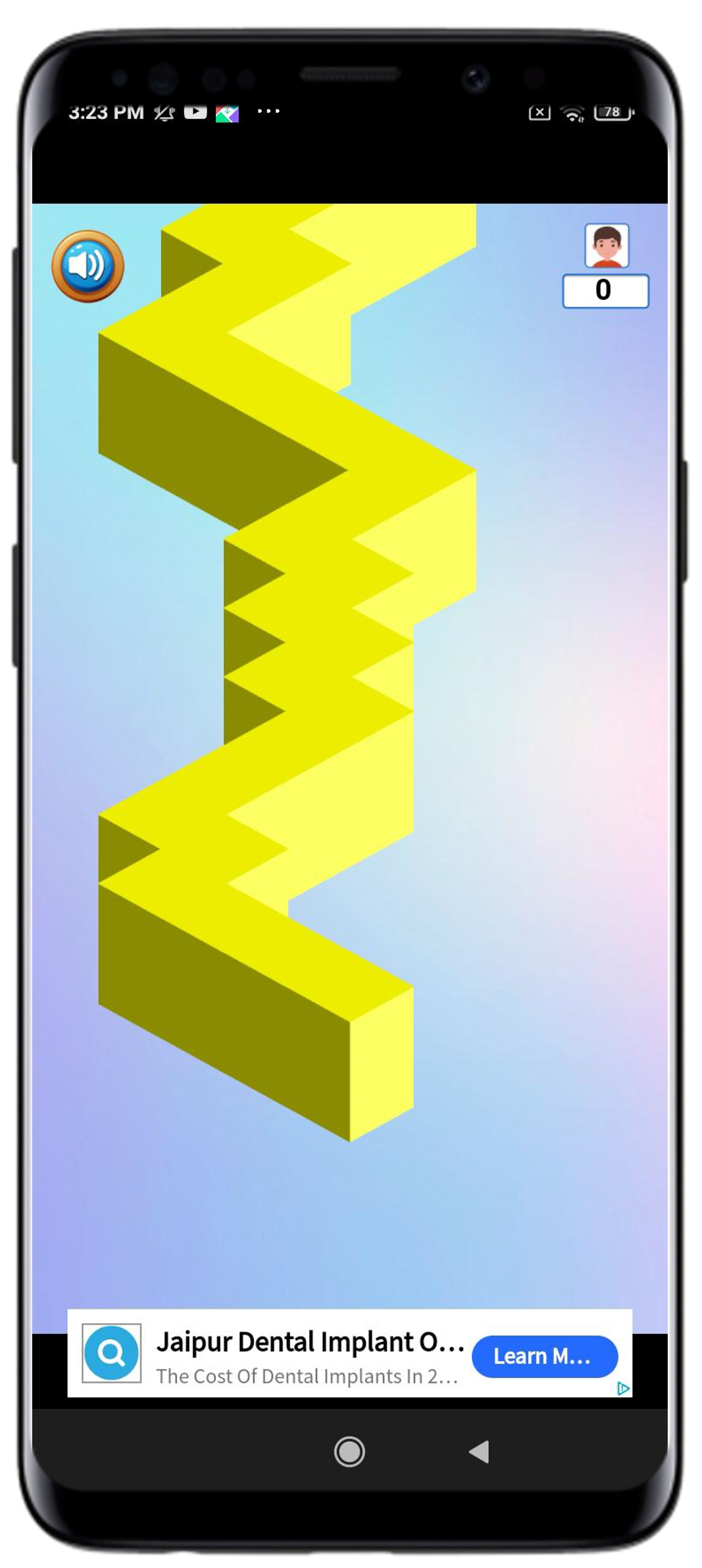
Ingame anchor (320x50 pixels) ads
-
The banner ad slot stays on the screen throughout the entire game session.
-
The ad slot does not block any game UI element.
-
The ad request fires in the Network tab of the Chrome debugger.
-
The player sees an ad whenever there is an ad response.
-
The ad is center-aligned.
-
The entire ad is clearly visible.
-
The ad is not near the player-interaction part of the screen.
-
The size of the ad is not bigger than 320x50 pixels.
-
The ad does not flicker.
-
The game collapses the ad slot when there is no ad fill.
-
A game layer does not hide the ad or a part of the ad.
-
The landing page of an ad opens without unlocking the phone.
Read Test Method using Testing Tool to activate the tool in your game.